Introduction
The search feature is designed to help your team discover influencers who will seamlessly align with your campaign objectives. To make the most of it, start by defining the ideal influencer profile that best supports your campaign's success. Use all available filters to refine your search and identify creators who meet your specific criteria. Once you've narrowed down your options, dive into their profiles to assess whether their audience and content resonate with the goals of your campaign. This deeper exploration will ensure you’re partnering with influencers who can drive meaningful engagement and deliver the results you’re aiming for.
Quick notes before you dive in
- Finding influencers who align with your brand's vision is crucial for campaign success. With Fohr, you can easily search and explore influencer profiles and content to find the perfect match.
- Each influencer’s profile showcases essential details, including engagement metrics, audience insights, top content samples, testimonials, and more. To get started, head to "Search," where you can look up specific influencers or use filters to refine your search.
- All influencers who sign up on Fohr are instantly searchable on our platform. You can also add off-platform influencers for reference, and once they join Fohr, their profiles will be automatically saved in your Community!
Training Materials
this section holds all the training materials you need to successfully utilize search
Search Basics
Filters
In search there are several ways you can narrow down creators. We are excited to share more information below!
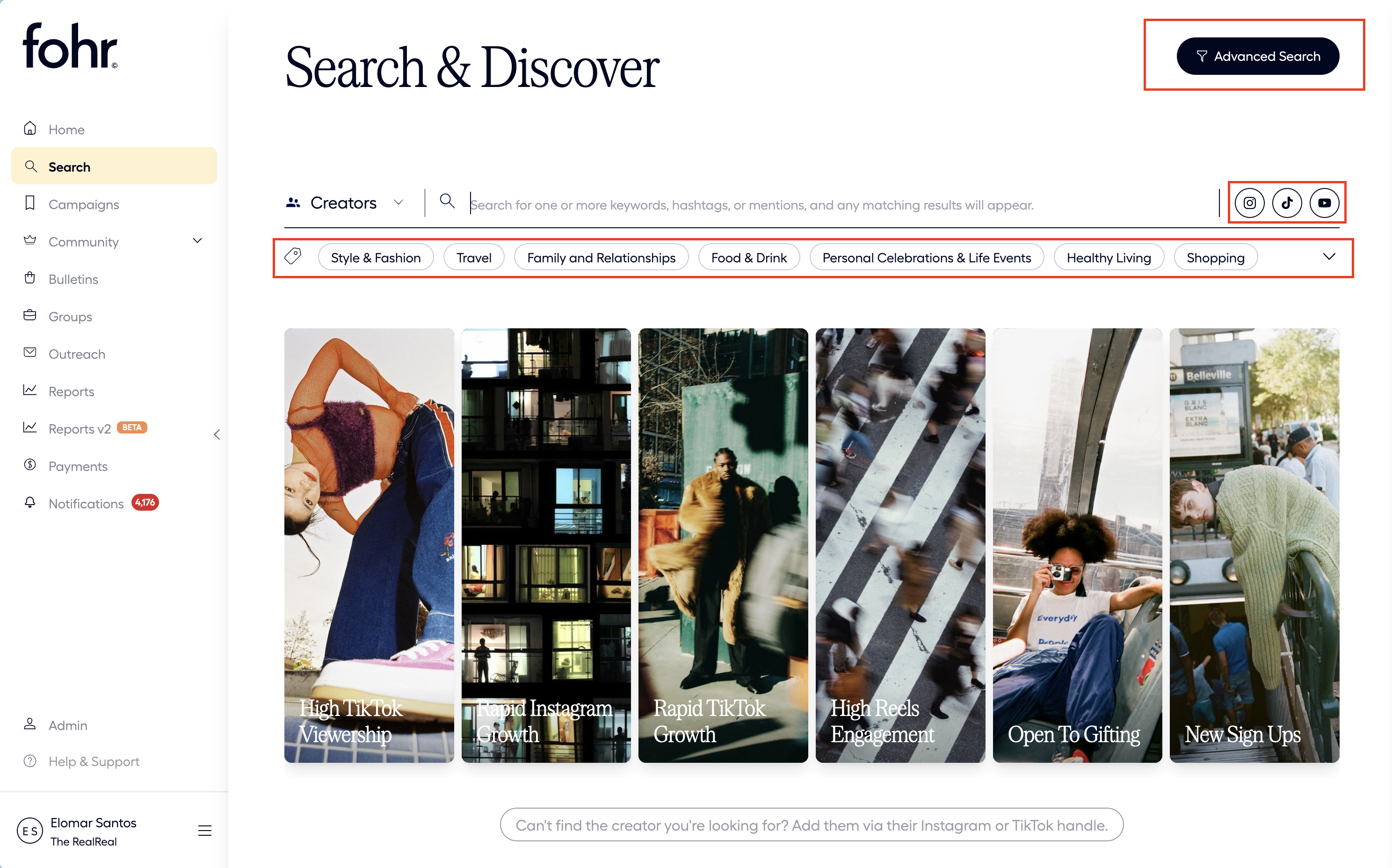
Advanced Search
- Summary
- Offers information unique to Fohr’s API connections and Creator data.
- Filter for items such as location, demographic information, platform analytics, and management status.
- Instructions
- Click the “Advanced Search” button on the top right.
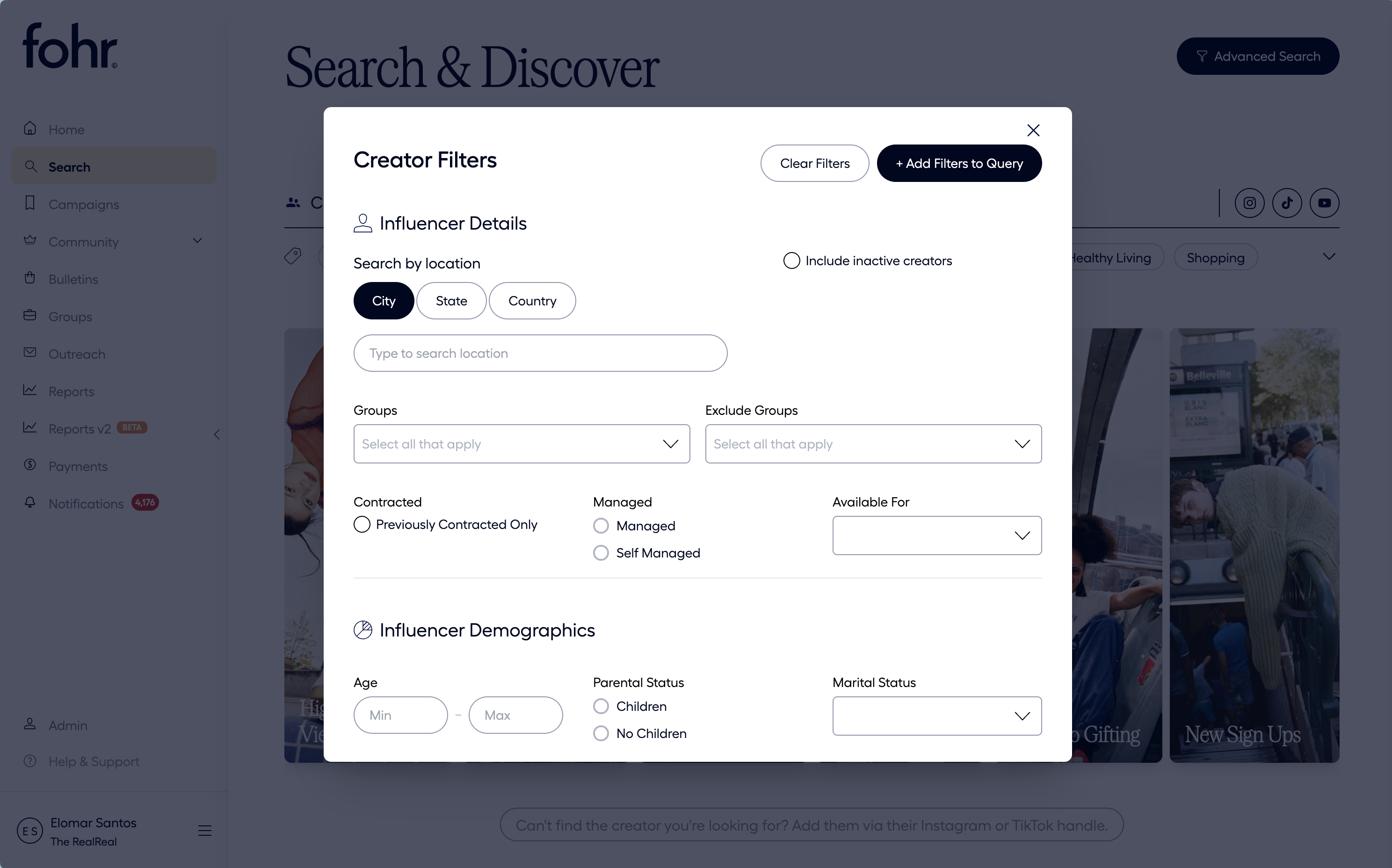
- Add the filters that interest you
- Click “+Add Filters to Query”
- To remove the filters, click “Advanced Search” then “Clear Filters”
Social Platform
- You can find all platforms offered on Fohr to the right of the search bar
- Simply click the icon(s) you would like to search for and the search will filter for creators matching those platforms
- Depending on the selected platform you can narrow the results even further by using platform filters.
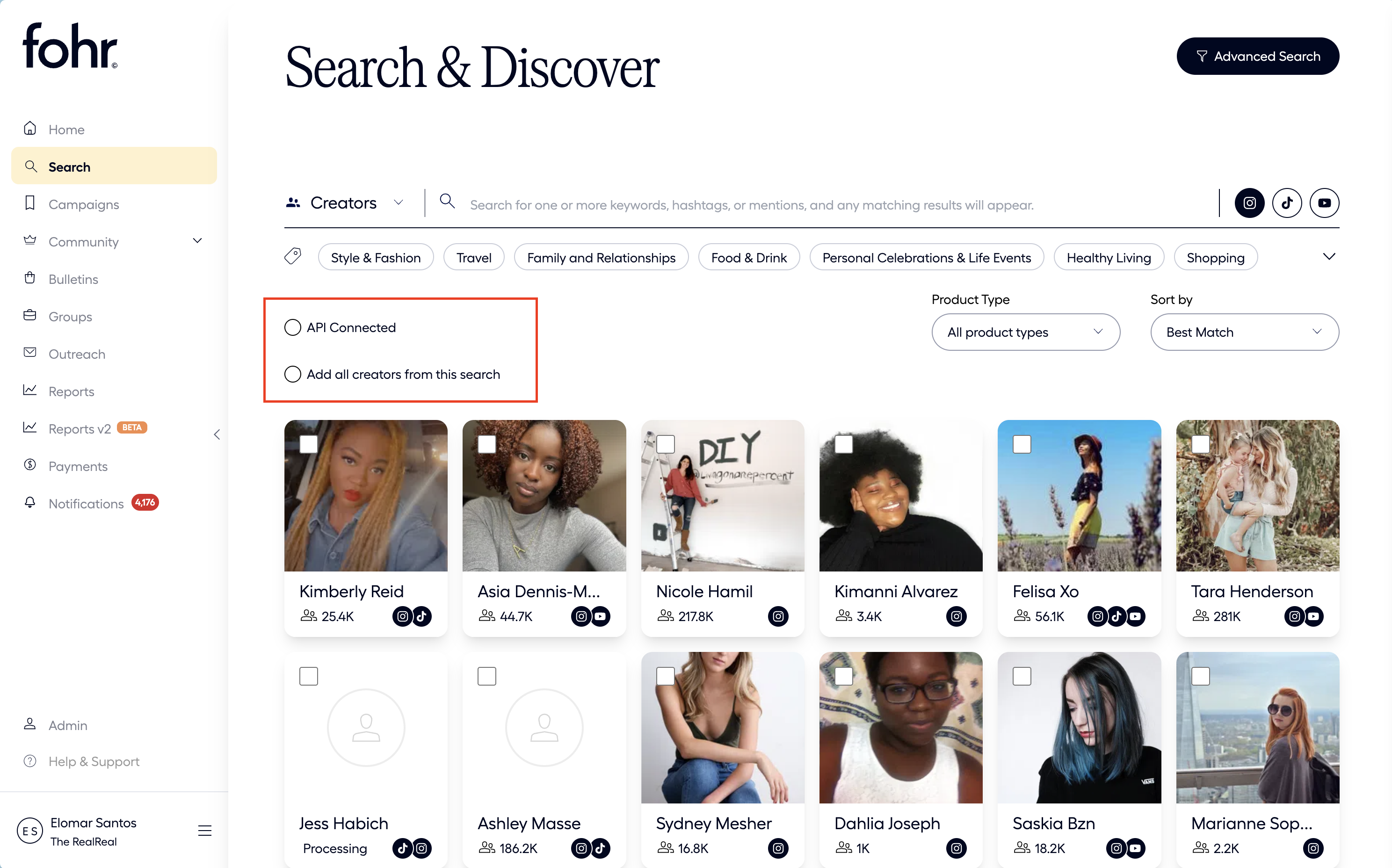
- If you would like to use creators fully connected to the API simply check the API connected button. For more information on connection types check out this document.
- Additionally you can filter by media type, if you want to ensure the creators post about stories simply select stories from the “Media Type” dropdown list
- You can organize the results by updating the sort function
- Click “Sort by” and you can update to the following:
- Best Match
- Joined Fohr
- Most Overall Followers
- Least Overall Followers
- Average Engagement
- Click “Sort by” and you can update to the following:
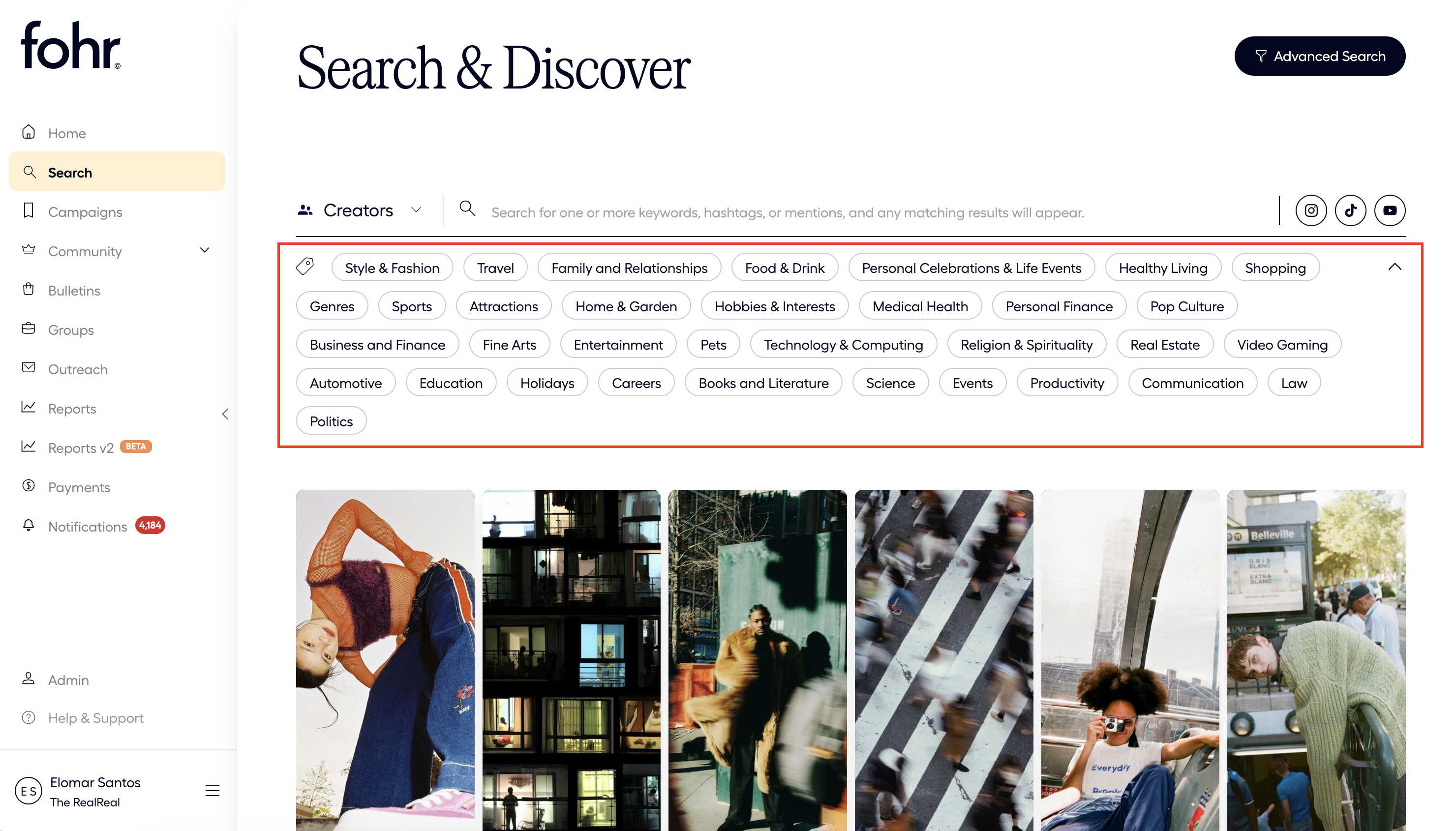
Tags
- Fohr has unique access to creators information, thats where we collect tags. Tags reflect the type of creator content each offers. For example a “Style & Fashion” creators content will center around style and fashion.
- We have a plethora of tags that can assist with your search.
- To use simply click the tag(s) you would like to filter for and results will appear. These tags can be coupled with any other filter type.
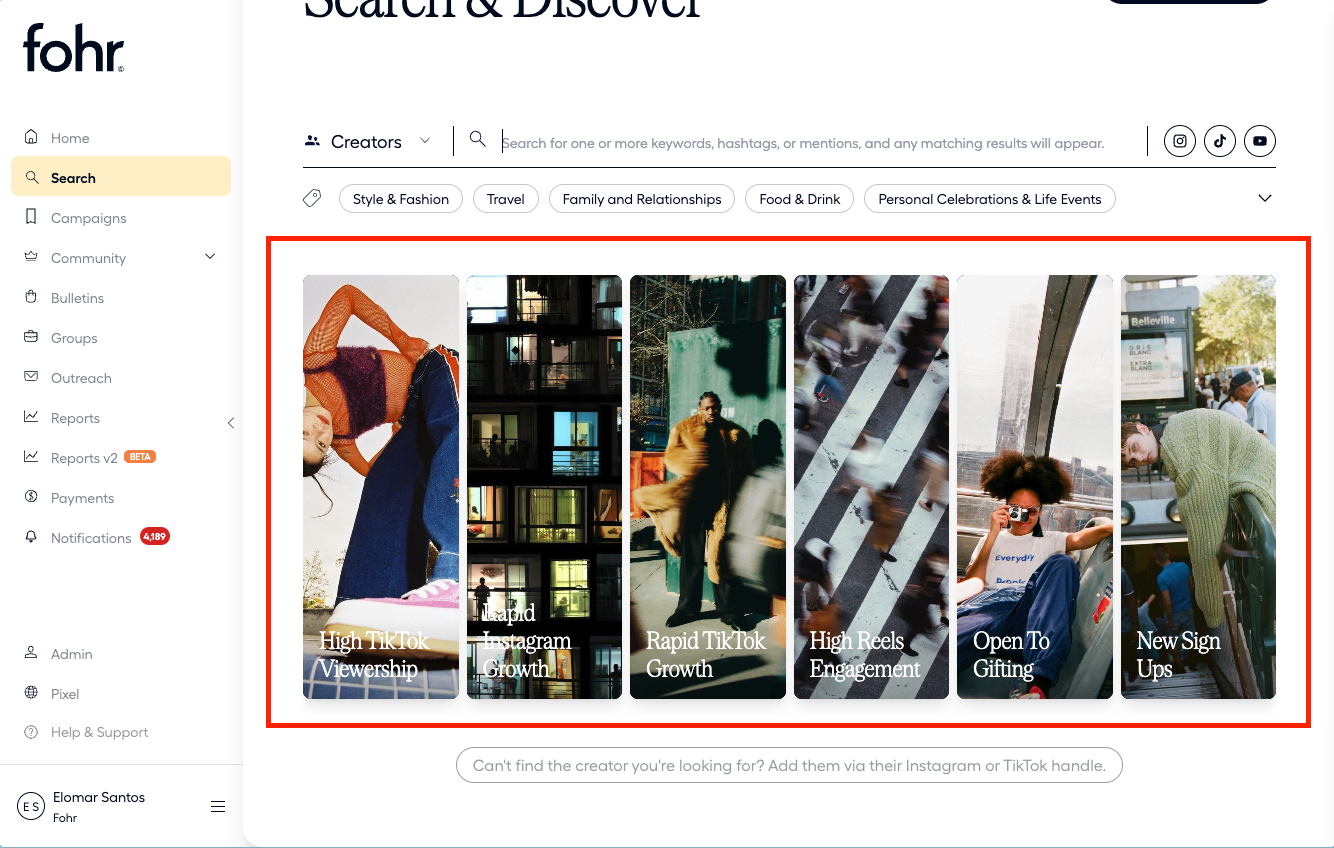
Smart Lists
- With Fohr’s insights our platform is able to pull together smart lists of interesting creators to work with. These lists change seasonally to be helpful for campaigns.
- To access simply click on the list you are interested in viewing and the search will yield results for that specific list.
Creator Search
How to Search
- In the search bar, enter a name, keyword, or hashtag.
- Select the relevant platforms to view connected creators.
- Check API Connected to exclude basic connections. (Learn more about connection types [here].)
- Use tags to filter creators by the style of content they create. Click a tag to apply it.
- Use Advanced Filters to refine results further:
- Options include follower size, location, gender, race, and management status.
- Click Advanced Search in the top-right, enter terms, and select +Add Filters To Query.
Sharing Search Results
- If you would like to share the search results youve found with other users you can share via link!
- Apply all desired filters.
- Copy the link from your browser and share it with teammates.
Add to Group
- To easily keep track of creators, you can create groups for future reference. Check out this page for details on creating groups. As your Community grows through bulletin posts, outreach, and campaigns, you’ll start seeing creators in your “Collaborators” section making it simple to reference any previous partner at a glance.
Content Search
How to Search
- Switch the dropdown next to the search bar from Creators to Content.
- Enter a name, keyword, or hashtag in the search bar.
- Follow the same steps as creator search for platform connections, tags, and advanced filters.
- View content directly in the app or add it to a report by clicking Create Report in the top-right corner.
- Enter a name, keyword, or hashtag in the search bar.
Content Search Reports
- After you search for content a button will appear on the top right that states “Create Report”
- Click this button then add the name of the report
- Click “Save” the report can be found in the “Reports” section of platform