Introduction
Briefs are the first introduction a creator has to a Fohr campaign. The information provided here is critical to campaign success. Creators should have clarity and excitement about the campaign right when they read the brief!
Training Materials
this section holds all the training materials you need to create and use briefs
Campaign Briefs Overview
- There are three types of briefs in a campaign: Master, Group, and Participant. Briefs flow top-down, meaning:
- Editing the Master Brief allows you to apply changes to Group or Participant briefs.
- Editing a Group Brief can apply changes to Participant briefs.
- Editing a Participant Brief only affects other Participant briefs.
Editing and Managing Campaign Briefs
- Access and Edit the Brief
- Navigate to the “Brief” section at the top of the navigation bar.
- Use the text formatter to edit and update each section as needed. You can also insert images and videos.
- Quick Navigation
- Use the right-side navigation bar to quickly jump between sections.
- To add a new section, click “Add Custom Section” below the desired location.
- Group and Individual Briefs
- Group briefs are created automatically as new participant briefs are added.
- To switch between briefs, click the title at the top, and a dropdown menu will appear with all available options.
- Saving Changes
- To save changes to all briefs, click “Save All” at the bottom of the page.
- To save changes to specific briefs:
- Click “Save & Apply to Other Briefs”.
- Select the briefs to update in the popup.
- Click Next, then Save.
- Important: Changes saved to multiple briefs cannot be reverted.
- Updating Brief Settings
- Click the gear icon next to the brief title to update settings such as the logo or start/end dates.
- Previewing the Brief
- To view the brief from the influencer or client perspective, click “Preview” on the right side of the page at any time.
By following these steps, you can efficiently customize and manage your campaign briefs!
Applying Edits to Other Briefs
- After making changes, click "Save & Apply to Other Briefs" and select where you want the updates to apply.
- Important:
- If you edit a Participant Brief first, then later apply changes from a Group Brief, it will override the Participant Brief. This is why we recommend editing from the top down—start with the Master Brief and work downward.
- Reminder to edit the Participant Brief head to the participants tab, click the participants name and their brief will appear. Ensure the participant is in the Approved status to edit their brief.
Creator POV
How To Access
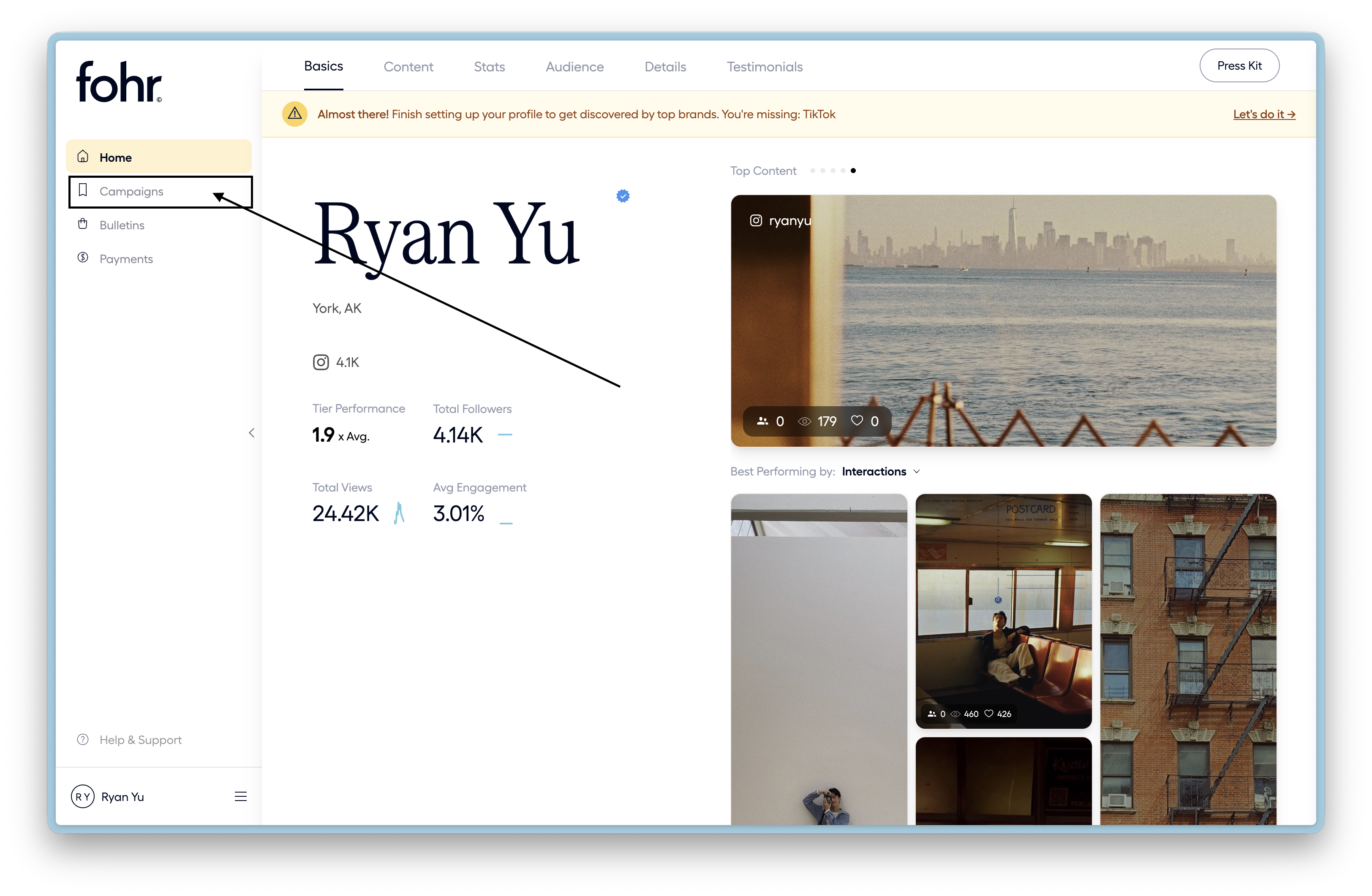
- Login to your Fohr profile at app.fohr.co
- On the left navigation bar click “Campaigns”