Introduction
Contracting is an essential function of the campaign process. This is legally binding documentation that a creator will participate in your campaign. While not all campaigns require contracts, all campaign offer contracts.
Quick notes before you dive in
Contracts contain proprietary information and can not be shared externally under any circumstance.
Whats coming up next?
New workflows for contracts are always being considered including improvements to off-line negotiations and signature flow.
Training Materials
this section holds all the training materials you need to successfully create and use the Campaign Contracts feature
Basics
- When creating a campaign you have the option to select a contract template. These are contracts you have previously added to your brands account
- If you have concerns about the templates, please consult your Account Manager
- For information about contract templates, check out this article
Editing the Campaign Contract
- Scroll to the Contract section.
- Open the contract and edit each section as needed, including agreements, exhibits, and terms.
- Click Save after making changes.
- Use Save All to save everything at once.
- Select **Save & Apply to Other Briefs** to update specific briefs.
Editing Group Briefs
- Toggle between the **Master Brief** and **Group Briefs** by selecting the desired option from the dropdown menu in the title.
Editing Participant Briefs
1. Go to the **Participants** tab.
2. Click on the participant's name.
3. Open their brief and make edits.
4. Click **Save All** to save changes for that participant.
Remember to save after every update to ensure changes are applied.
Exporting a Contract
- If you need to take your contracts off platform follow the instructions below!
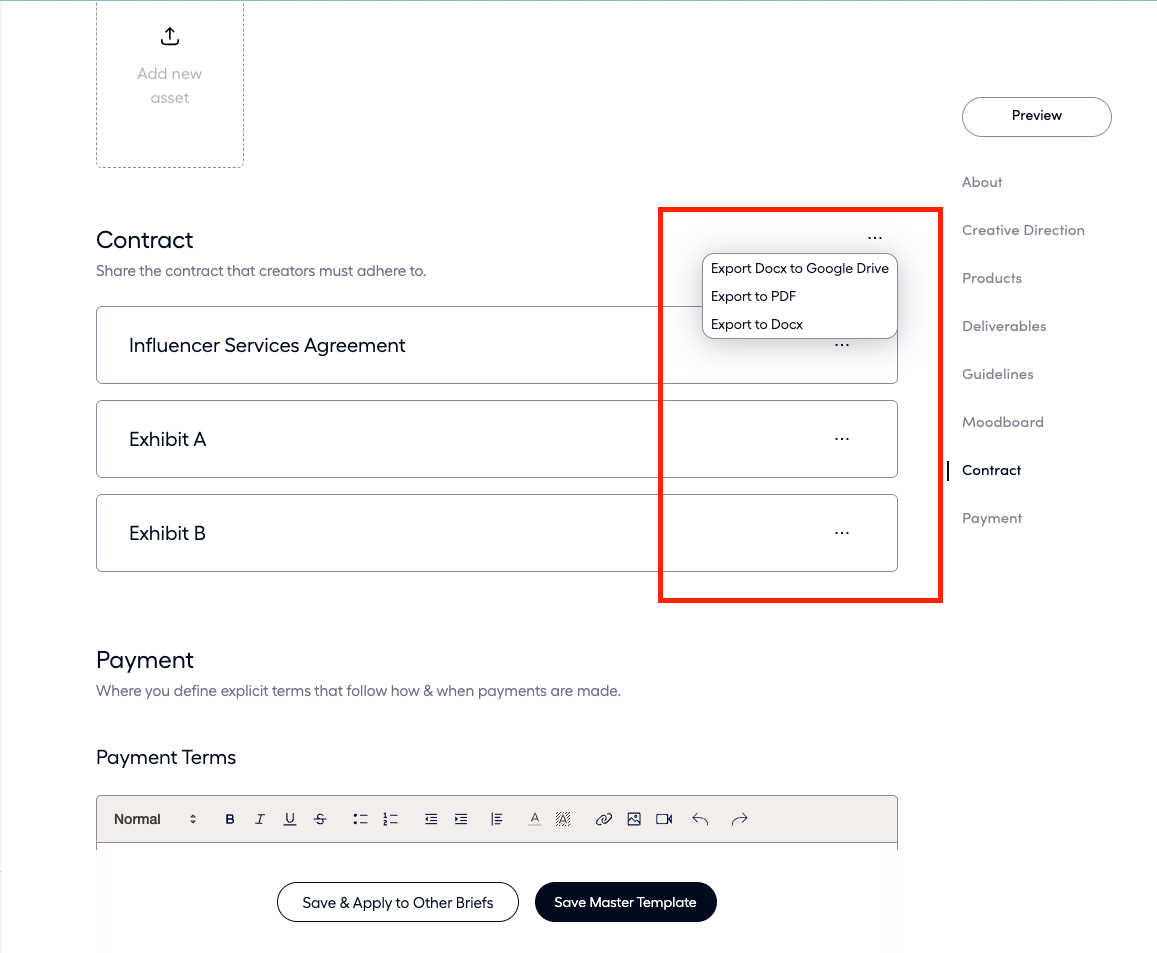
- All contracts can be exported as Google Docs, PDF, or Docx
- To export all parts of the contract at once, use the ellipses on the top right of the contract section
- To export individually, click the ellipses on the right of each block
- Select from “Export to PDF” or “Export to Docx”