Introduction
Welcome to your new insights uploader! Manually adding creator stats can be time consuming, this new tool will do the work for you. Using AI the stats screenshots will be analyzed and the correct data will automatically be entered for you!
Quick notes before you dive in
Stats screenshots are your second line of defense, a creators connection is very important as it gives us all creator insights in real time therefore stats screenshots are irrelevant. As a back up the stats screenshots can supplement this information.
Updates
This is a new feature that exists within the “Live Content” section. To access; enter your campaign, click “Performance” then “Live Content”.
Whats coming up next?
This is a new feature an the product team is always looking for feedback! This update is coupled with our Live Content Dashboard and Deliverable Attribution. To learn more check out the docs below.
Training Materials
this section holds all the training materials you need to upload stats screenshots
How to Upload
Once content is attributed you are able to analyze any stats screenshot from your creators, all the work is done for you!
Scroll down to view all content that has been attributed to the campaign. This content was attributed automatically or manually.
Click the Star Icon on the content card to upload your screenshot.
- A modal will appear
- Upload your screenshot
- Once updated the “Current Stats” section will update before your eyes!
- Click “Save Changes” and you’re good to go!
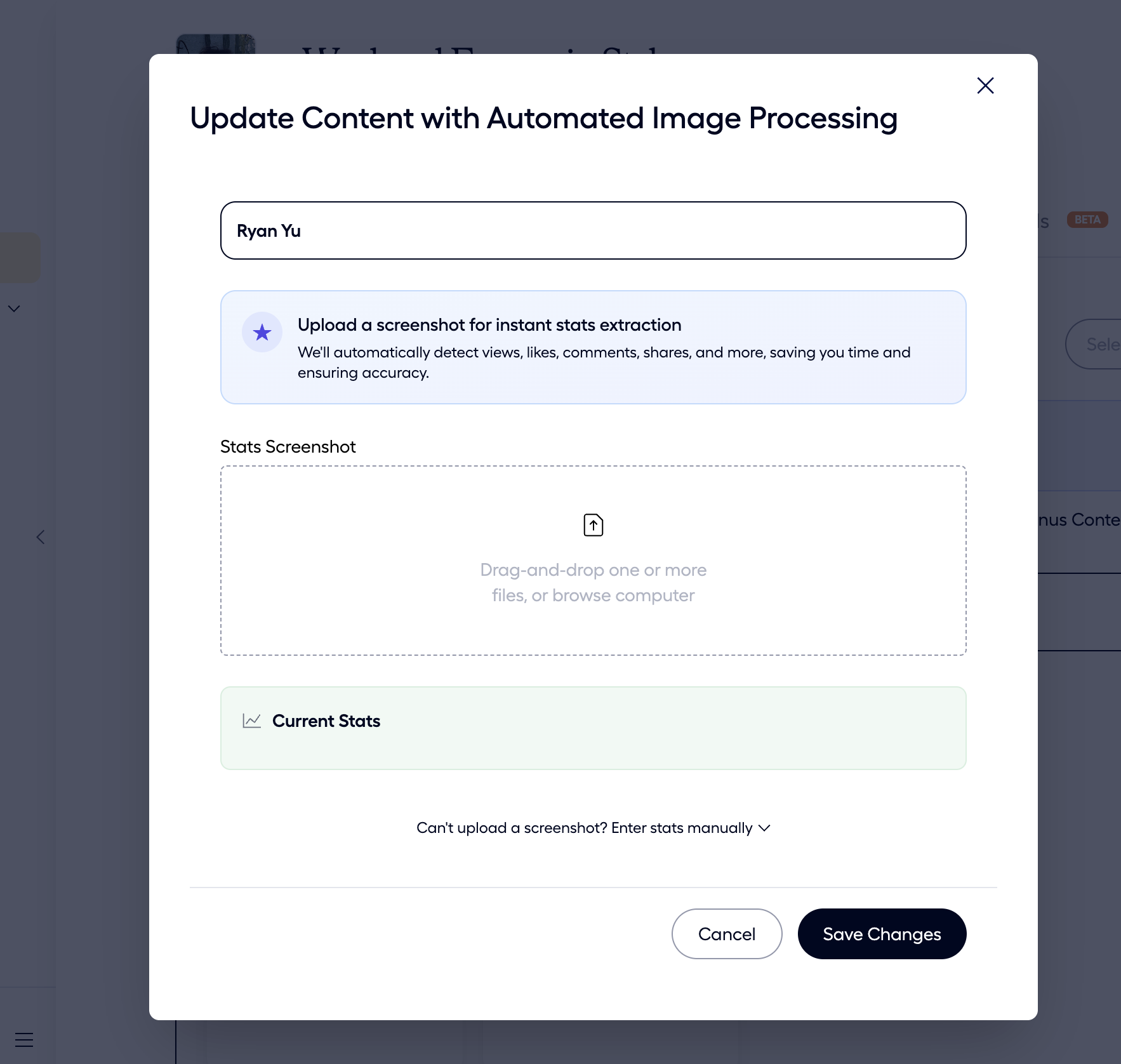
Backup:
If you can not upload a stats screenshot but need to add more, click “Can't upload a screenshot? Enter stats manually”!
Live Content Version
In the live content section scroll down to view all content that has been attributed to the campaign. This content was attributed automatically or manually.
Click the Star Icon on the content card to upload your screenshot.
- A modal will appear
- Upload your screenshot
- Once updated the “Current Stats” section will update before your eyes!
- Click “Save Changes” and you’re good to go!